

Camera setup
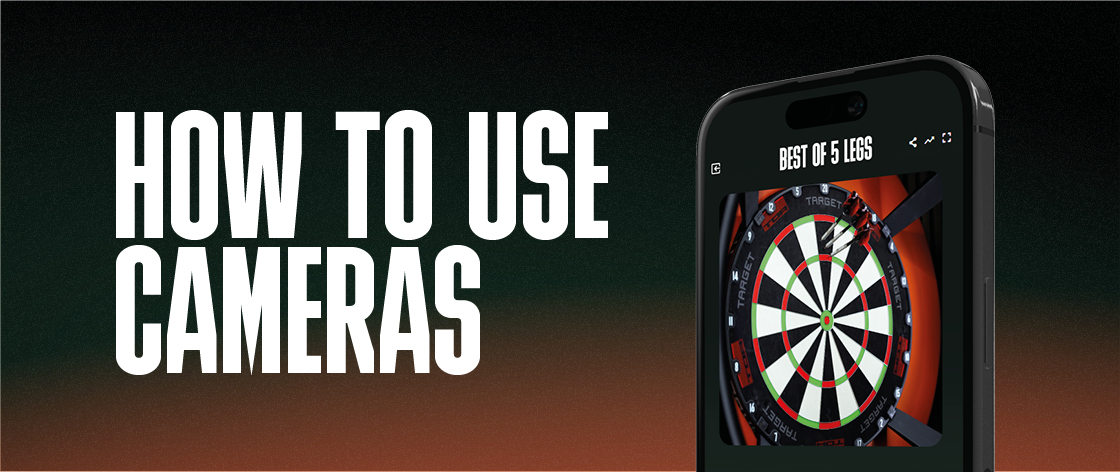
Using a camera in DartCounter lets you share a live view of your dartboard during online matches, add a camera to local matches and capture memorable moments with Action Replays. There a several ways to connect a camera to DartCounter. You can use the built-in camera on your phone or tablet, connect an external camera or use Target VirtCam as a dedicated dartboard camera. This guide helps you choose the right setup, connect your camera and get the best possible view of your dartboard.
Choose your camera setup
DartCounter supports three different camera setups. The best option depends on the devices you have available and how you prefer to play.
You don't need a dedicated camera to get started. For most players, the camera on their phone or tablet is the easiest option. If you want to keep your DartCounter device separate from your camera, an external camera or Target VirtCam may be a better choice.
How to set up your camera
Phone or tablet
The simplest way to add a camera is to use the built-in camera on the device running DartCounter. Before starting your match, you can select an available camera and preview the image. You can switch between available camera en adjust the zoom until your dartboard is framed correctly.
This setup works best when your device can be positioned at a stable location where the full dartboard remains visible. Because the same device is also running DartCounter, make sure you can still access the app and enter your scores comfortably.
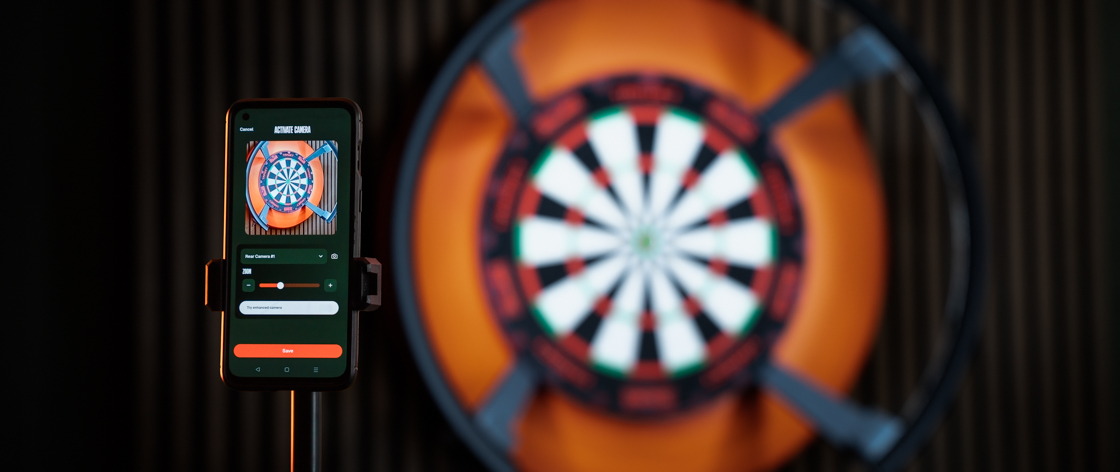
Connect external camera
An external camera setup allows you to keep DartCounter open on one device while using another device to capture your dartboard. For example, you can use a second smartphone or tablet as your camera while continuing to enter scores on your main device.
- Open DartCounter on the device you use to play.
- On your second device, open a web browser and visit https://app.dartcounter.net/connect
- Follow the instructions on the webpage to connect your camera.
- Once connected, your camera will appear under connected device in DartCounter.
- Select your connected camera when setting up your match.
Your external device needs a working camera and a browser that can access the connection webpage. This setup gives you more flexibility when positioning your camera without effecting access to DartCounter on your main device.
Target VirtCam
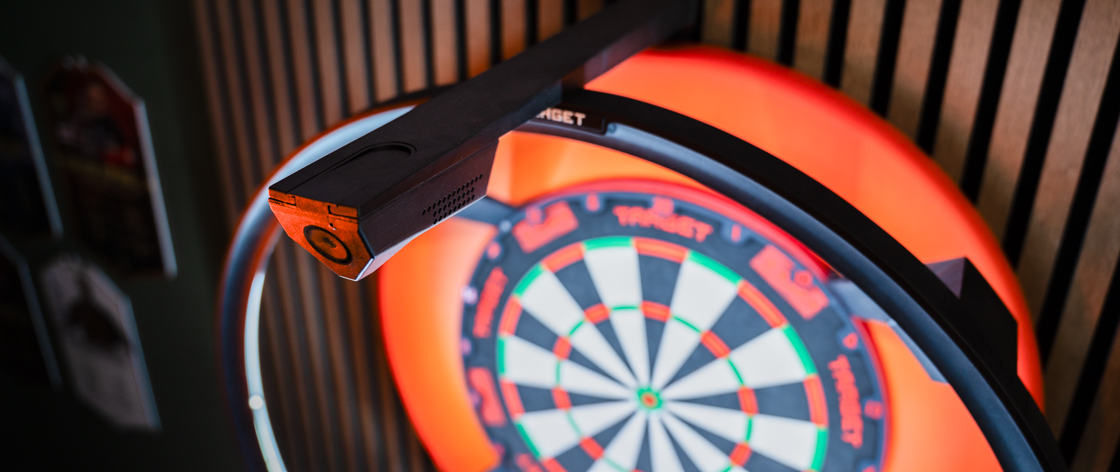
Target Virt is a dedicated camera designed to capture your dartboard during online matches. Unlike a phone or a tablet, VirtCam can remain in a fixed position as part of your dartboard setup. It is particularly useful if you regularly play online and don't want to reposition your camera before every match.
Target VirtCam can be fitted to a compatible Target MOD setup or mounted separately around your dartboard. To connect a VirtCam, first configure the camera according to the Target instructions. Once available on your network, you can connect it through the Smart Devices section in DartCounter.
After connecting, select VirtCam as your camera when setting up a match. You can also give your VirtCam a unique name, making it easier to recognise when multiple smart devices are connected to your account.
Position your camera
Whichever camera setup you choose, your dartboard should be clearly visible. Position your camera so the full dartboard remains in frame throughout the match. Make sure the video stream is stable and that there is enough light to clearly see the board and where the darts land.
Before starting your match, check the camera preview. Small adjustments to the position or zoom can make the dartboard much easier to see. You should also avoid placing the camera where you regularly block the view while throwing or collecting your darts. A clear and stable camera feed makes playing and following matches easier.
Cameras in DartCounter
Once your camera is connected, you can use it for different features in DartCounter.
Online matches
During online matches, your camera provides your opponent with a live view of your dartboard. This allows players to see each other's throws and follow the match more easily.
The camera preview appears alongside the match, allowing your opponent to see your dartboard while continuing to follow scores and other match information in the DartCounter app. The camera view can be expanded during the match for a closer look at the board.
Local matches
You can also connect a camera when playing a local match in DartCounter. This allows you to include a camera view of your dartboard while playing locally. Camera support is available for local matches, but not for the other practice modes.
Action Replays
With a connected camera, DartCounter can capture memorable moments from your matches using Action Replays. For example, you can save a replay of a 180 or an impressive finish. DartCounter adds a score overlay to the camera footage, allowing you to relive the moment alongside the match information.
If you're using Target VirtCam, an Action Replay can include both the VirtCam stream and the dartboard camera view. Action Replays provide a way to revisit and share some of your best darts moments.
Action Replays are stored in your DartCounter account for a limited time:
- DartCounter Ultimate: Up to 30 days
- Free users: Up to 7 days.
You can download your clips to your own device at any time during this period to keep them permanently. After the storage period expires, the clips are automatically removed from your DartCounter account.
Camera connecting issues
If your camera stops working during a match, you can try refreshing or reconnecting it without leaving the game. Camera controls remain available during the match, allowing you to manage your camera feed if the connection is interrupted.
If you're using an external camera or Target VirtCam, check that the device is still connected before starting your next match. You may also need to reconnect you camera after refreshing DartCounter or starting a new online session.