
Release notes Omni v1.1.0
Features
New Update Flow
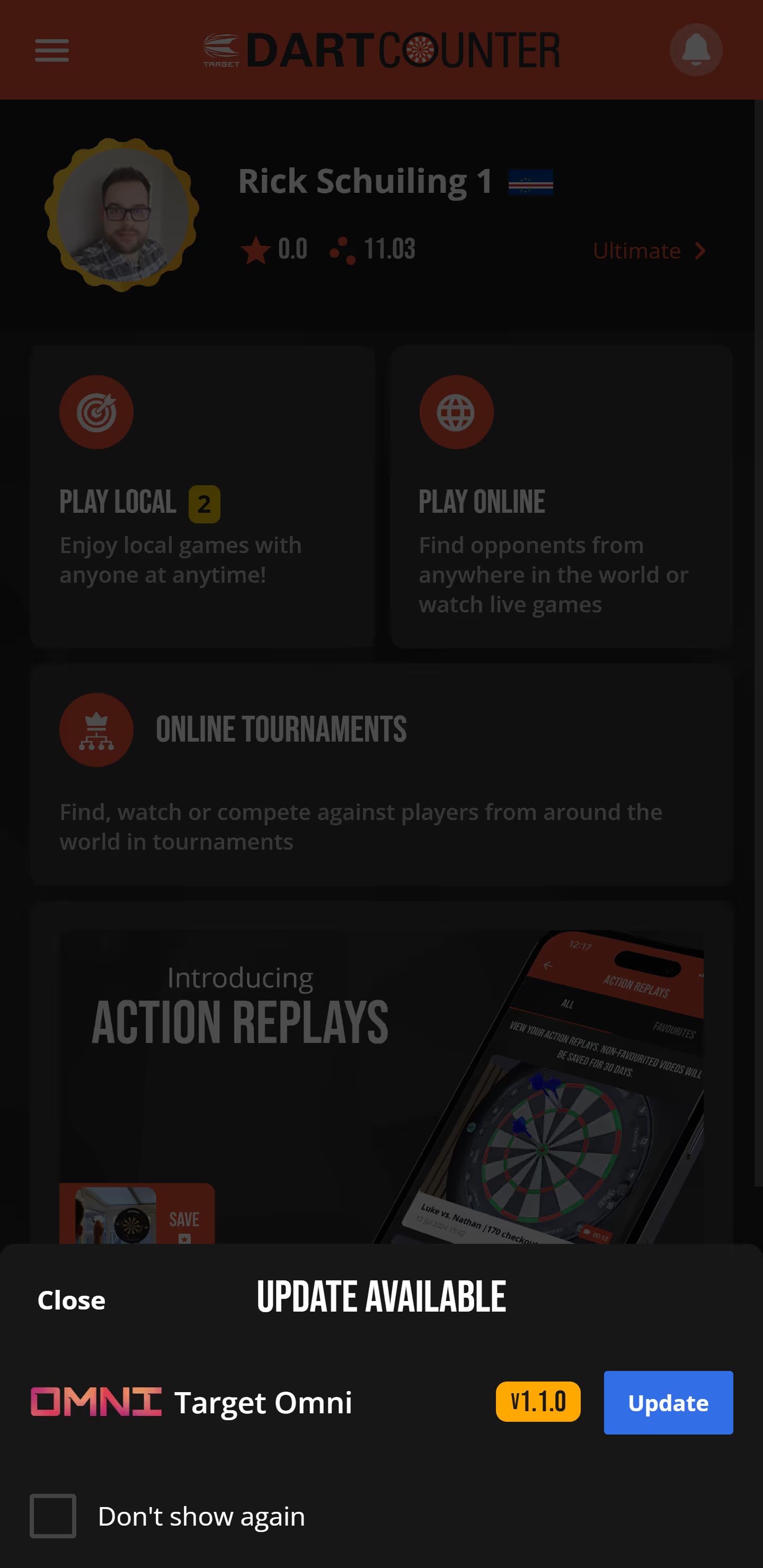
We've introduced a streamlined update process for your Omni. When a new firmware update is available, the app will now notify you and let you start the update manually. During the update, you'll see real-time progress within the app and receive a confirmation once it's complete.
Advanced Menu Options
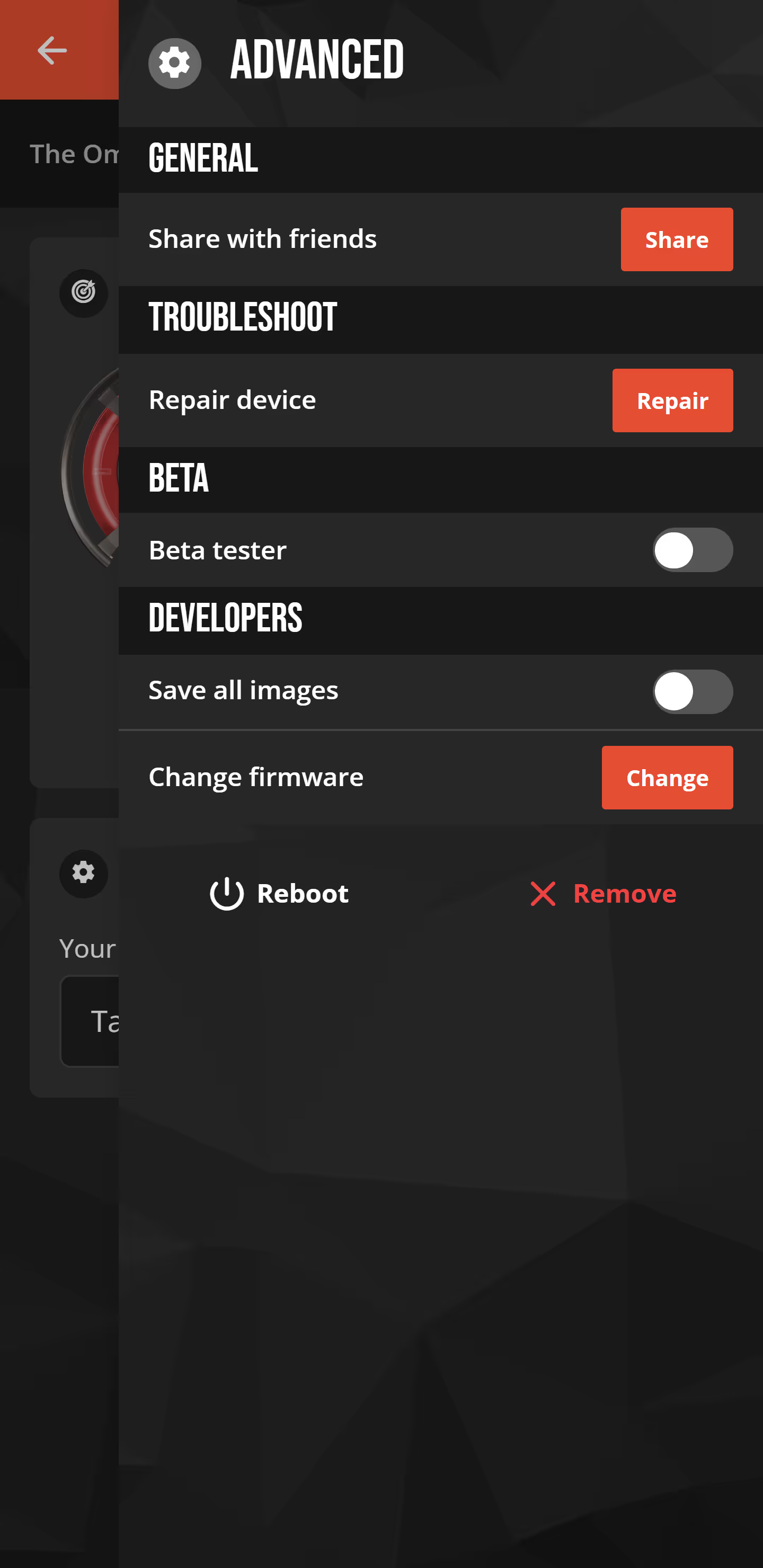
You can now access an advanced menu by tapping the cogwheel icon in the top right corner or by swiping from right to left. This menu includes a new "Repair" option, giving you control to recover your device in case something goes wrong during an update.
Improved Stability & Feedback
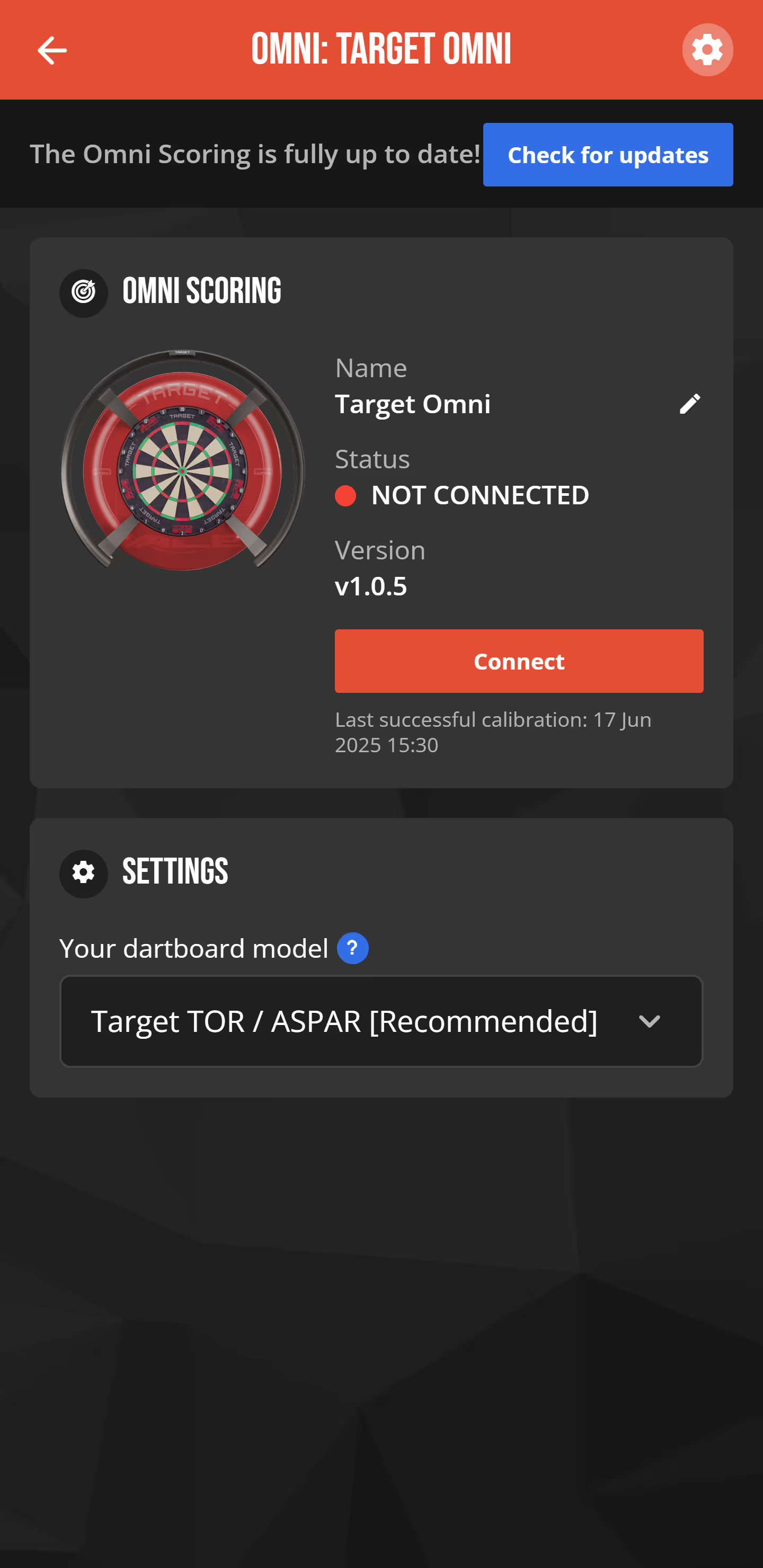
We've made several stability enhancements and improved how the app communicates connection issues. You'll now get better feedback when your Omni disconnects from your phone or loses internet connectivity.
Web support
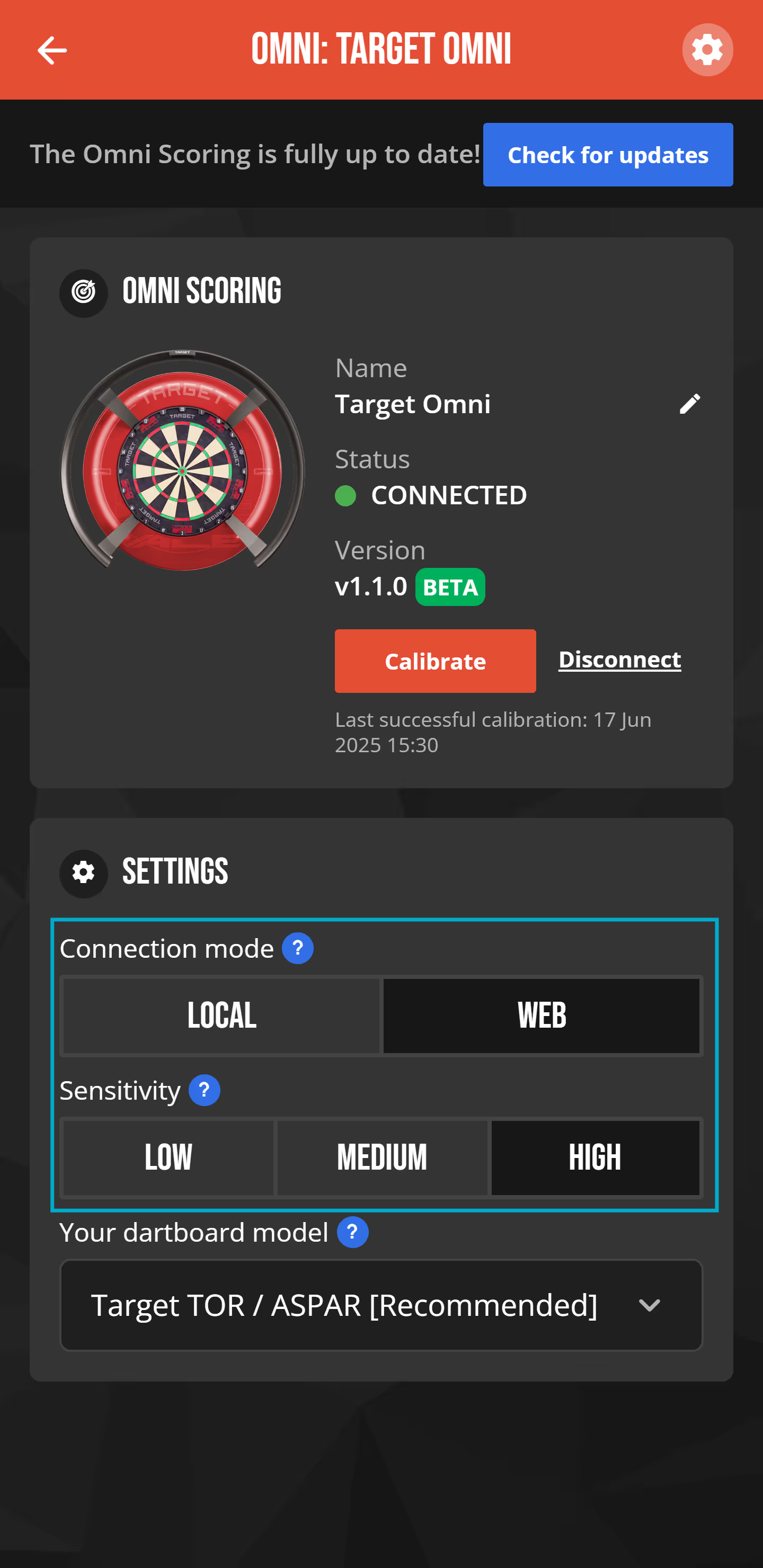
Starting from version 1.1.0, your Omni will be fully compatible with the DartCounter website. Once updated, you'll be able to switch between two operating modes:
- LOCAL Mode – This is the default and current behavior, ideal if you're using the app only.
- WEB Mode– Activate this mode to use your Omni directly on the DartCounter website.
You're in full control of which mode you use. And don't worry — if you're on the website and your Omni is still in Local Mode, the app will prompt you automatically to switch to Web Mode.
Sensitivity Modifier
We've also added a new Sensitivity setting. By default, it's set to HIGH, which is recommended for most environments. However, if you experience phantom dart detections — often caused by strong external lighting or reflections — lowering the sensitivity might improve accuracy.
You can easily adjust this setting to suit your environment. Once again, you're in control.